Showing posts with label Openbridge - Medium. Show all posts
Showing posts with label Openbridge - Medium. Show all posts
Friday, September 26, 2025

Wednesday, April 30, 2025
Friday, February 14, 2025
Monday, February 10, 2025

Thursday, December 19, 2024
Powerful Amazon Advertising Sponsored Brands Search Term Report

If you are an Amazon Selling Partner, Agency, Consultant, or a brand on Vendor Central, running an Amazon Advertising Sponsored Brands campaign means targeting shopper intent and competing for shoppers' attention.
But how do you know if your keywords are doing their job?
Enter the Amazon Advertising Sponsored Brands Search Term Report. This report helps you see which keywords increase clicks, sales, and new customers.
In this article, we’ll walk through the basics of the Search Terms Report and how you can use it to guide your strategy, save time, and boost your results. (see Amazon Advertising Help Center — Sponsored Brands Search Term Report)
Why the Search Terms Report is Essential for Sponsored Brands
Choosing the right keywords can be tricky. You want to reach shoppers most likely to buy, not waste your budget on terms that don’t convert. The Keyword Report shows you exactly which keywords are working and which aren’t, helping you:
- Understand which search terms lead to sales and which don’t
- Make smarter decisions about bidding and budget
- Find new keyword ideas to grow your brand reach
By seeing actual data on impressions, clicks, and conversions, you’ll spend your money more wisely and gain an edge in the marketplace.
Key Metrics Featured in the Sponsored Brands Search TermsReport
The report includes a few essential metrics. Understanding them will help you spot trends and opportunities:
- Impressions: How often does your ad show up?
- Clicks & Click-Through Rate (CTR): Are people who see your ad clicking it?
- Cost-Per-Click (CPC): How much you pay each time someone clicks.
- Conversions & Conversion Rate: How many clicks lead to sales.
- New-to-Brand Sales: How many first-time customers your brand is winning.
These are not the only metrics, using the Openbridge AI Data Copilot, you can see the complete Sponsored Brands Search Term Report schema:
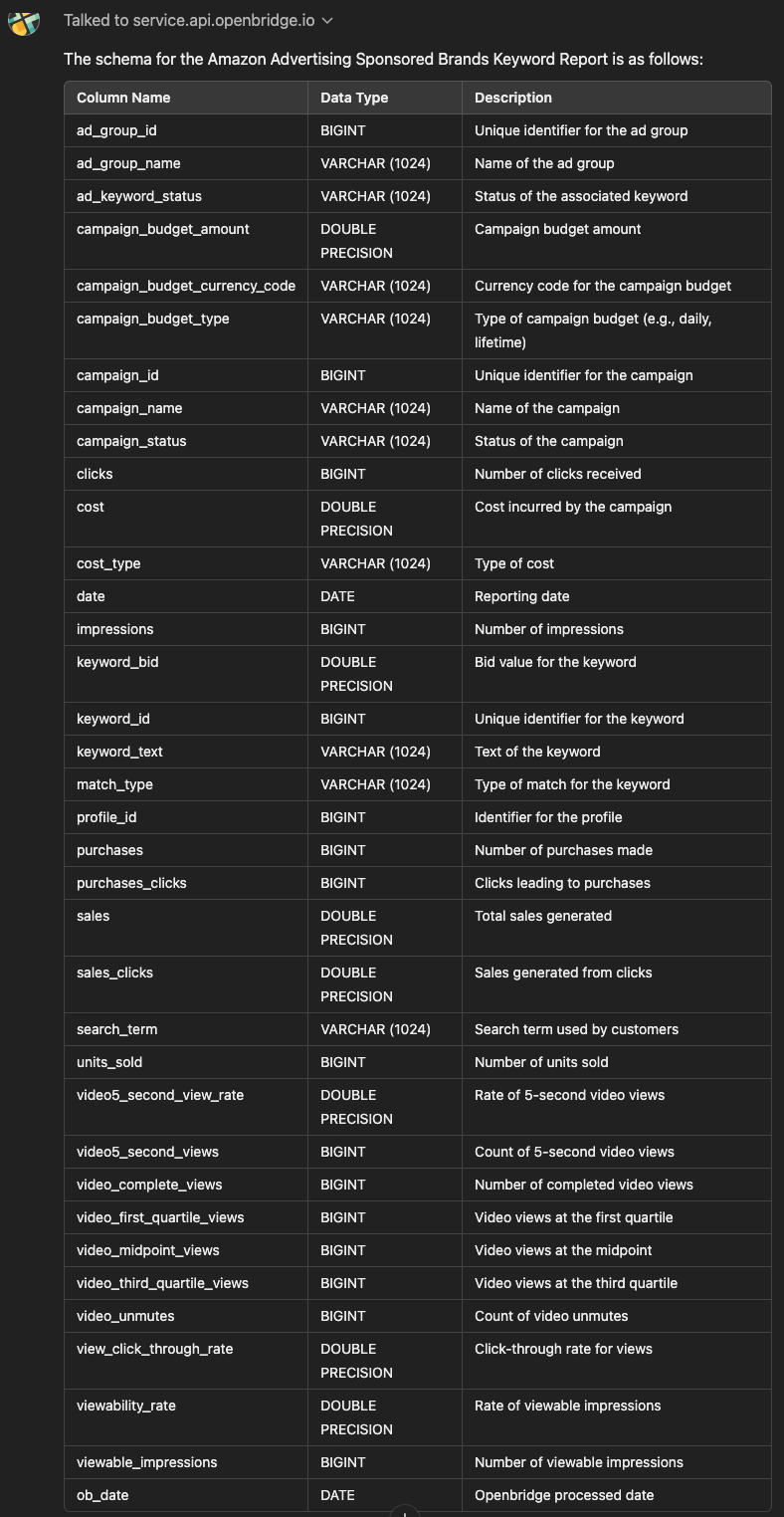
With the various report metrics, you can see what’s working and what’s not. For example, a high CTR but a low conversion rate might mean shoppers are curious but unconvinced. A strong New-to-Brand number suggests you’re drawing fresh eyes to your brand.
Identifying High-Performing and Low-Performing Keywords
Once you have the report, it’s time to dig in. Sort or filter the spreadsheet by your key metrics. Looking for winners? Check for:
- High CTR and conversions
- Low CPC
- Strong New-to-Brand sales
These are the keywords you may want to invest more in. Conversely, consider lowering bids or pausing keywords with low CTR, high costs, or weak sales. For example, if “organic dog treats” drive strong conversions while “healthy dog snacks” barely get clicks, focus on “organic dog treats (see Amazon Ads Learning Console — Optimization Tips).
Leveraging Match Types for Better Targeting
Match types control how closely a shopper’s search must match your keyword. If the Keyword Report shows:
- Exact match terms are converting well, you might raise bids on those terms.
- Broad match terms are getting clicks but not sales; it might be time to refine them.
- Phrase match terms doing well might be worth testing as exact matches to fine-tune targeting.
Using the report’s data, you can adjust which match types you emphasize. For instance, switching a high-performing broad match keyword to an exact match can focus your reach and reduce wasted ad spend.
Integrating Insights from the Search Term Report into Campaign Management
The Keyword Report isn’t just a bunch of numbers — it’s a roadmap. Use it to:
- Adjust bids: Spend more on keywords that drive profits and spend less on ones that don’t.
- Revise budgets: Shift more of the budget to performing the best campaigns.
- Add or remove keywords: Add fresh keywords or remove those that don’t measure up.
Make it a habit to review your Keyword Report regularly. Checking it every month or quarter can help you stay on top of trends and respond to changes quickly. Pairing these insights with other Amazon ads reports — like the Search Term Report — gives you a complete picture of your campaign performance.
Expanding Keyword Lists with Search Term Insights
Your Search Term Report can also help you grow. You can add those as new keywords by reviewing the search terms that deliver strong results. On the flip side, you can also add low-performing search terms as negative keywords to block them, saving money. This constant refining helps you reach the right shoppers and improve your campaign health.
How to Be a Data-Driven Advertiser: Manual or Automation?
Here’s how to manually get your Search Term Report:
- Log in: Access your Amazon Advertising console.
- Find Reports: Click on the “Reports” tab in your dashboard.
- Choose Sponsored Brands: Select “Sponsored Brands” and then pick “Keyword” as the type.
- Select Timeframe: Pick “daily” or “summary” data.
- Download: Hit “Run Report” and then download the file (usually in CSV format).
Looking to automate the flow of these reports?
Getting Started with Keyword Report Automation
Ditch the messy, manual reporting for Sponsored Brands Keyword Reports. Automated data feeds guide data-driven decision-making to improve off-Amazon digital marketing campaigns. Leverage attribution insights to refine strategies, allocate resources efficiently, and enhance customer engagement across all touchpoints.
Openbridge will unify and deliver performance data to data lakes or warehouses like Redshift, Google BigQuery, Snowflake, Azure Data Lake, and Amazon Athena, giving you a single source of truth. This unified data can turbocharge reporting and analytics tools like Google Data Studio, Tableau, Microsoft Power BI, Looker, Amazon QuickSight, SAP, Alteryx, dbt, Azure Data Factory, and Qlik Sense.
>> Get a 30-day free trial to try Amazon Ads Sponsored Brands Search Term Report automation. <<
Powerful Amazon Advertising Sponsored Brands Search Term Report was originally published in Openbridge on Medium, where people are continuing the conversation by highlighting and responding to this story.
from Openbridge - Medium https://ift.tt/9xhbQIu
via Openbridge
Monday, December 16, 2024

Amazon Advertising Sponsored Products Campaign Report

If you’re selling products on Amazon and running ads, you’re probably familiar with the importance of tracking and optimizing your ad performance. But how can you know if your efforts are paying off? That’s where the Amazon Advertising Sponsored Product Campaign Report comes in.
Whether new to Amazon advertising or looking to sharpen your strategy, understanding these reports can make a huge difference in maximizing your ad spending and growing your business.
Understanding the Campaign Report for Sponsored Products
The Campaign Report for Sponsored Products is a comprehensive tool designed to show how well your ads perform over a specified period. You can use it to evaluate everything from daily performance to monthly trends, allowing you to make informed decisions on improving your campaigns.
This report summarizes the performance of your Sponsored Products ads across different campaigns. It tracks crucial metrics and helps you analyze the effectiveness of your ad strategies. You can use it to:
- Track your ad spend
- See how many impressions (views) your ads are getting
- Measure how often people are clicking on your ads
- Evaluate how much revenue your ads are generating
In short, the Campaign Report is your one-stop shop for tracking how well your ads are doing and what changes need to be made.
Types of Data Available in the Report
The Sponsored Product campaign report offers a variety of data types that can be helpful depending on how deep you want to dive into your ad performance. When you drill down into your report, you’ll see a variety of metrics that give a complete view of your campaign’s performance. Key metrics include:
- Impressions: Understanding impressions can help you gauge the reach of your ads. If your impressions are low, it might indicate that your ads aren’t being shown to enough people.
- Clicks: Clicks are a critical metric. A high click-through rate (CTR) generally means your ad appeals to customers. If clicks are low, your ad needs better call-to-action or more engaging visuals.
- Spend: This metric shows how much money you’ve invested in the campaign. Tracking spend is essential for understanding whether you’re getting a good return on your investment.
- Sales: Sales data is crucial in determining the effectiveness of your ads. If you get lots of clicks but low sales, your landing pages or product listings may need improvement.
- ACoS and RoAS: These two metrics go hand-in-hand. A low ACoS means you’re spending less on ads than the sales generated, while a high ROAS shows that your advertising dollars are being used effectively.
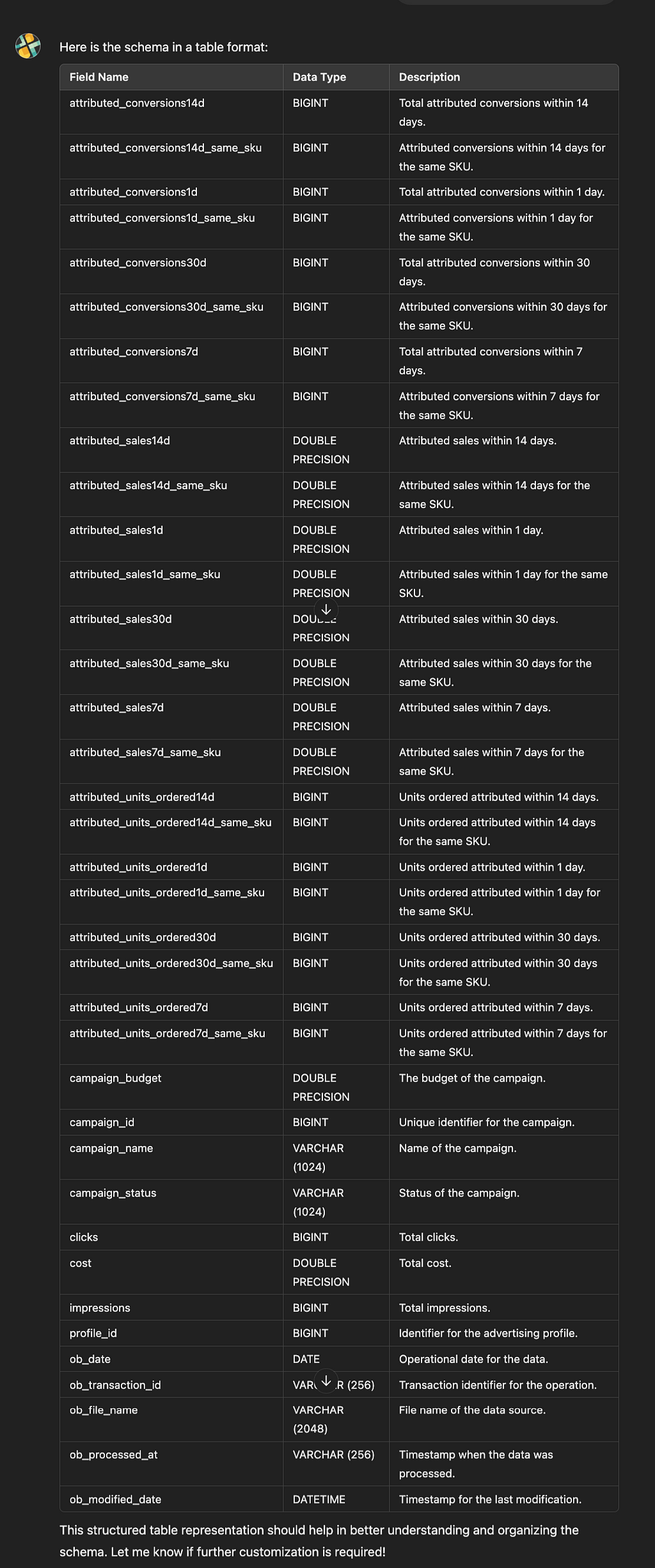
Here is the list of the base metrics:
- Impressions
- addToList
- qualifiedBorrows
- royaltyQualifiedBorrows
- Clicks
- Cost
- Purchases (1 day)
- Purchases (7 days)
- Purchases (14 days)
- Purchases (30 days)
- Purchases (Same SKU, 1 day)
- Purchases (Same SKU, 7 days)
- Purchases (Same SKU, 14 days)
- Purchases (Same SKU, 30 days)
- Units Sold (Clicks, 1 day)
- Units Sold (Clicks, 7 days)
- Units Sold (Clicks, 14 days)
- Units Sold (Clicks, 30 days)
- Sales (1 day)
- Sales (7 days)
- Sales (14 days)
- Sales (30 days)
- Attributed Sales (Same SKU, 1 day)
- Attributed Sales (Same SKU, 7 days)
- Attributed Sales (Same SKU, 14 days)
- Attributed Sales (Same SKU, 30 days)
- Units Sold (Same SKU, 1 day)
- Units Sold (Same SKU, 7 days)
- Units Sold (Same SKU, 14 days)
- Units Sold (Same SKU, 30 days)
- Kindle Edition Normalized Pages Read (14 days)
- Kindle Edition Normalized Pages Royalties (14 days)
- Date
- Start Date
- End Date
- Campaign Bidding Strategy
- Cost Per Click
- Click Through Rate
- Spend
If you want a real-time AI-driven Amazon Advertising data copilot, the Openbridge AI Data Copilot can get you there fast:
How to Use Campaign Reports to Optimize Ad Performance
As you continue using these reports, remember that consistent analysis and optimization are the keys to success. Regularly review your campaigns, make necessary changes, and continue testing new strategies. The more you engage with your campaign data, the better your results will be.
Identify High-Performing Campaigns
The first step is to identify which campaigns are doing well. Look for campaigns with high sales and a low ACoS. These campaigns are performing effectively, and consider increasing your budget for them or scaling your efforts.
Spotting Underperforming Campaigns
If some campaigns have high ACoS or low sales, it might be time to re-evaluate. Here’s what you can do to improve underperforming campaigns:
- Adjust your bids: If your ads aren’t getting enough impressions, you might need to increase your bid.
- Change your targeting: Try targeting different keywords or your product targeting to reach a more relevant audience.
- Update your ad copy: Sometimes, the wording or images in your ads might not resonate with customers. Test different versions to see what works best.
Adjusting Campaign Settings
Once you’ve reviewed your data, it’s time to make adjustments. Consider:
- Reallocating your budget: If a particular campaign performs well, consider increasing its budget while cutting back on less effective ones.
- Modifying your targeting: Targeting the right audience is key. Use your report data to see which keywords or products generate the best results and focus more on those.
- Optimizing your bidding strategy: If certain keywords are performing better than others, increase your bid for those keywords to ensure your ads get shown more often.
Getting Started with Amazon Ads Sponsored Products Data Automation
Ditch the messy, manual reporting for the Amazon Ads Sponsored Product Campaign Report. Automated data feeds guide data-driven decision-making to improve off-Amazon digital marketing campaigns. Leverage insights to refine strategies, allocate resources efficiently, and enhance customer engagement across all touchpoints.
Openbridge will unify and deliver performance data to leading data lakes or cloud warehouses like Redshift, Google BigQuery, Snowflake, Azure Data Lake, and Amazon Athena for an analytics-ready single source of truth to fuel informed decisions on brand building strategy, media, and customer demand for Amazon.
With your data unified, start to turbocharge reporting, analytics, and business intelligence tools like Google Data Studio, Tableau, Microsoft Power BI, Looker, Amazon QuickSight, SAP, Alteryx, dbt, Azure Data Factory, Qlik Sense, and many others.
— ->>> Get a 30-day free trial to begin your Sponsored Product Campaign Report automation journey.
Amazon Advertising Sponsored Products Campaign Report was originally published in Openbridge on Medium, where people are continuing the conversation by highlighting and responding to this story.
from Openbridge - Medium https://ift.tt/x2n7hdf
via Openbridge
Friday, December 13, 2024

Amazon Advertising Campaign Reports for Sponsored Brands

For Amazon Sellers and Vendors, the Amazon Advertising Campaign Report for Sponsored Brands is a vital tool that offers deep insights into campaign performance. By understanding and utilizing the wealth of information it provides, you can optimize your campaigns, improve ROI, and strategically grow your business.
Understanding the Amazon Advertising Sponsored Brand Campaign Report
The Amazon Advertising Sponsored Brand Campaign Report summarizes your campaign performance over a selected date range. It’s available for Amazon Sellers and Vendor Central retailers running Sponsored brand campaigns.
Key Features of the Campaign Report
By leveraging this report, you can gain valuable insights into your campaigns’ performance and make informed decisions to enhance your advertising efforts. The report offers an aggregated overview of your campaign performance.
Using the Openbridge AI Data Copilot, the schema for this report follows:
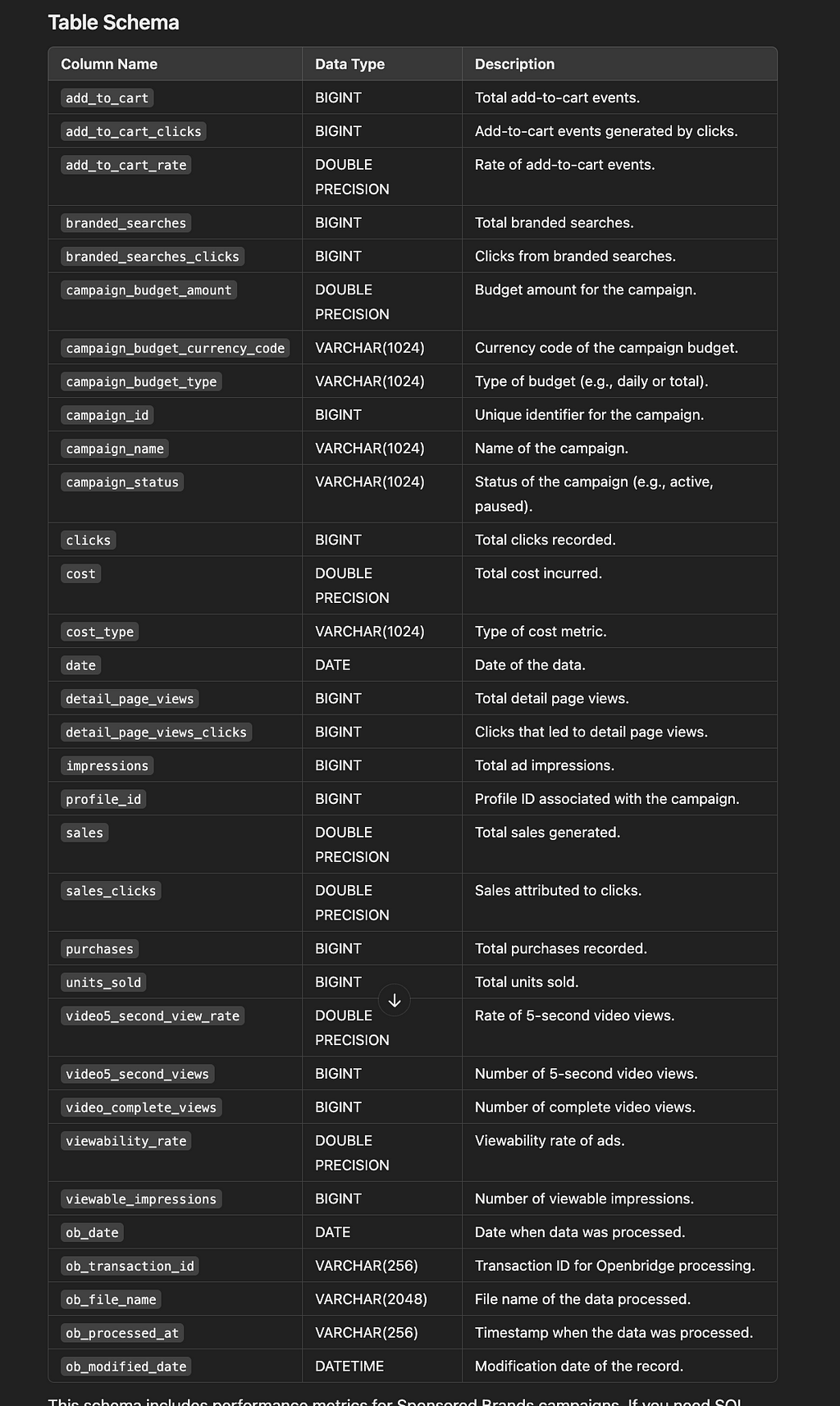
Understanding the report’s insights helps you:
- Assess Campaign Effectiveness: Identify which campaigns are meeting objectives.
- Optimize Budget Allocation: Redirect funds to high-performing campaigns.
- Strategize Growth Opportunities: Spot areas for expansion and increased ROI.
- Branded Searches: Measures brand awareness by tracking how often customers search for your brand.
- New-to-Brand Metrics: Indicates the number of first-time purchasers, highlighting customer acquisition success.
- Sales: Total revenue generated from campaigns.
- Return on Ad Spend (ROAS): Evaluate the efficiency of your advertising spend.
Analyzing these metrics allows you to tailor strategies to different customer journey stages, from awareness to conversion.
Optimizing Campaigns Based on Report Insights
Here are suggestions for optimizing your Sponsored Brand campaigns based on the insights provided in the amzn_ads_sb_campaigns report:
Enhance Budget Allocation
- Action: Monitor campaign_budget_amount and campaign_budget_type to ensure campaigns with high conversion rates (sales/clicks) or click-through rates (view_click_through_rate) have a sufficient budget.
- Why: High-performing campaigns may require increased budgets to avoid missed opportunities due to budget constraints.
Improve Targeting Strategy
- Action: Use data on branded_searches and branded_searches_clicks to identify the effectiveness of brand-related keywords. Invest in high-converting branded terms. Exclude underperforming or irrelevant keywords (negative targeting).
- Why: Focus on targeting terms with the highest relevance and performance to maximize return on ad spend (ROAS).
Analyze Audience Behavior
- Action: Leverage new_to_brand_detail_page_views and new_to_brand_units_sold to evaluate the acquisition of new customers. Develop campaigns targeting segments that show high engagement or conversion potential.
- Why: Prioritizing new-to-brand customers can grow your customer base and ensure long-term profitability.
Optimize Ad Creative
- Action: Review video5_second_view_rate, video_complete_views, and viewability_rate for video campaigns. Test new creatives with higher engagement. Improve video length, content relevance, and call-to-action clarity to increase completion rates.
- Why: High-performing visuals and engaging videos enhance brand recall and drive action.
Refine Bidding Strategy
- Action: Analyze top_of_search_impression_share to evaluate visibility. Increase bids for high-performing campaigns or keywords with strong conversion rates. Lower bids for underperforming campaigns to improve cost efficiency.
- Why: Competitive bids improve placement in high-visibility areas like the top of search results, maximizing clicks and conversions.
Adjust for Seasonality
- Action: Use the date column to identify seasonality trends in performance metrics like impressions, clicks, and sales. Increase spend during peak periods for your category. Decrease spend during slower periods while maintaining brand visibility.
- Why: Aligning budgets and strategies with demand cycles ensures efficient use of advertising resources.
Monitor Campaign Status
- Action: Regularly review campaign_status for campaigns that may be paused or not delivering impressions. Address issues causing campaigns to pause (e.g., budget exhaustion, eligibility issues).
- Why: Active management ensures consistent campaign performance and avoids downtime.
Focus on Conversion Optimization
- Action: Track metrics like purchases, units_sold, and sales for campaigns and refine: Ad copy or offers to boost conversions. Landing pages to reduce friction and improve purchase likelihood.
- Why: Conversion-centric strategies improve overall campaign profitability and ROAS.
Manage Invalid Traffic
- Action: Use metrics like gross_impressions and invalid_impressions (from other related datasets) to identify and reduce invalid traffic.
- Why: Reducing invalid impressions and clicks protects ad spend and ensures a higher share of genuine customer engagement.
A/B Testing
- Action: Test variations in creatives, budgets, or targeting strategies and compare performance metrics (add_to_cart_rate, detail_page_views_clicks, new_to_brand_purchases_rate).
- Why: Continuous testing uncovers strategies that drive better performance over time.
Enhancing Data Analytics with Openbridge
Ditch the messy, manual reporting for the Amazon Advertising Sponsored Brand Campaign Report. Automated data feeds guide data-driven decision-making to improve off-Amazon digital marketing campaigns. Leverage attribution insights to refine strategies, allocate resources efficiently, and enhance customer engagement across all touchpoints.
Openbridge unifies and delivers performance data to leading data lakes and cloud warehouses, including:
- Amazon Redshift
- Google BigQuery
- Snowflake
- Azure Data Lake
- Amazon Athena
- Databricks
This creates an analytics-ready single source of truth, fueling informed decisions on brand strategy, media planning, and understanding customer demand on Amazon. Unified data from Openbridge can turbocharge reporting and analytics tools like:
- Looker Data Studio
- Tableau
- Microsoft Power BI
- Looker
- Amazon QuickSight
- SAP
- Alteryx
- dbt
- Azure Data Factory
- Qlik Sense
Integrating with these platforms can enhance customer engagement across all touchpoints.
Getting Started with Amazon Advertising Campaign Report Automation
Openbridge specializes in delivering unified, analytics-ready data solutions. By providing code-free, fully managed data pipelines, Openbridge helps businesses harness the full potential of their data without the complexities of manual processes.
Get a 30-day free trial to try Amazon Advertising Sponsored Brand Campaign Report automation!
Amazon Advertising Campaign Reports for Sponsored Brands was originally published in Openbridge on Medium, where people are continuing the conversation by highlighting and responding to this story.
from Openbridge - Medium https://ift.tt/Qb0iDTq
via Openbridge
Wednesday, November 27, 2024
Exploring Amazon Vendor Central Direct Fulfillment

Amazon Vendor Central Direct Fulfillment is an effective drop ship program that allows vendors to ship products directly to customers on Amazon's behalf.
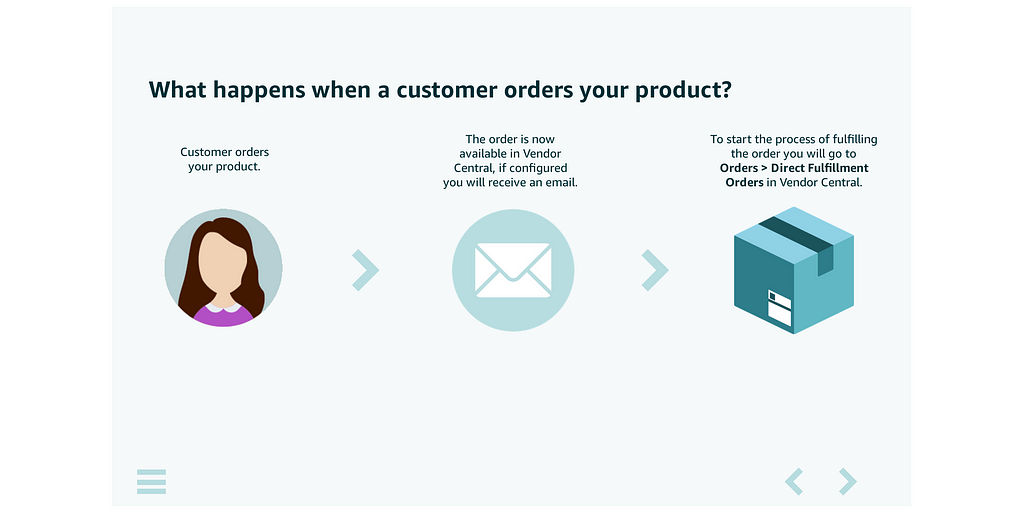
This guide will provide an in-depth overview of managing orders in Amazon Vendor Central, covering everything from onboarding to effectively handling bulk shipments. Whether you’re just getting started or looking to refine your processes, this comprehensive post will guide you through the core features of Direct Fulfillment.
Key Differences in Managing Direct Fulfillment Orders
One significant difference between direct fulfillment and traditional fulfillment by Amazon (FBA) is the prep work for each ASIN. Unlike FBA, where products are sent to Amazon’s fulfillment centers in bulk, Direct Fulfillment requires individual packing, and vendors need to apply specific labels to each package.
Additionally, Direct Fulfillment requires confirming the order right after the carrier picks it up, ensuring Amazon and the customer are notified immediately about the shipment’s progress.
What is Amazon’s Direct Fulfillment program for?
This program is designed for vendors onboarded into Amazon’s Direct Fulfillment program. Direct Fulfillment is Amazon’s drop-ship model, where vendors pack and ship products directly to customers rather than sending stock to Amazon’s fulfillment centers.
If you haven’t been onboarded onto Direct Fulfillment yet, Amazon offers a separate training called What Direct Fulfillment? in the Vendor Central Training Center. This training provides essential insights into the program and its benefits.
Critical Tasks in Order Management
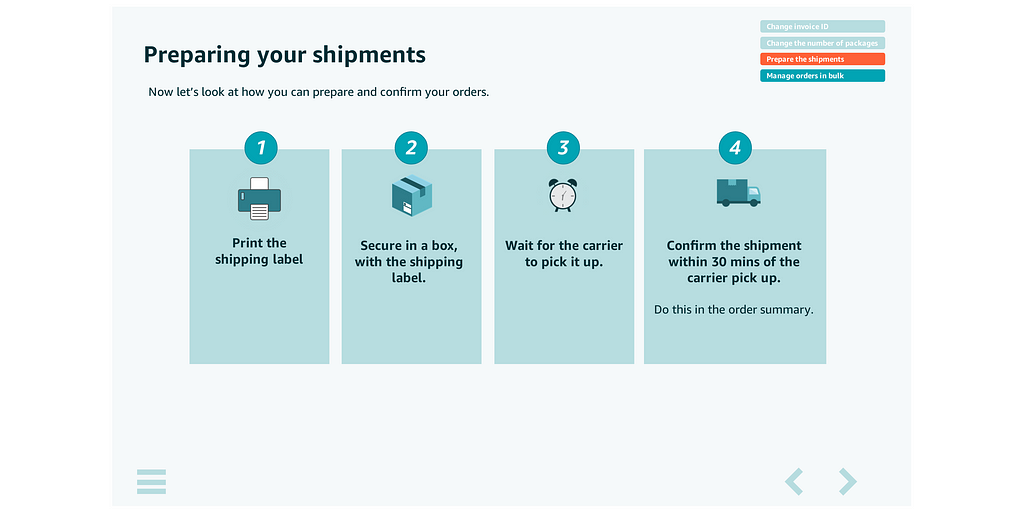
Managing orders in Vendor Central involves a few essential tasks to ensure a smooth fulfillment process. These include:
- Changing the Invoice ID: Vendors may need to update the invoice ID to avoid confusion with internal accounting systems. You must note that you can only do this before shipping the item.
- Changing the Number of Packages to be Shipped: Sometimes, an order may need to be adjusted based on packaging requirements.
- Preparing Shipments: Ensuring all items are packed properly with appropriate labels.
- Managing Orders in Bulk: Efficiently managing multiple orders using spreadsheets.
We’ll dive into the specifics of these tasks to help you manage your orders more effectively.
Changing the Invoice ID
To change the invoice ID in Vendor Central, follow these steps:
- Select “Update with Spreadsheet”: At the top of the Customer Orders page, click on “Update with Spreadsheet.”
- Download and Edit the Spreadsheet**: Select the appropriate warehouse and download the shipments template file. Once downloaded, modify the **Order ID** column in Excel, ensuring that the correct ID is used for your records.
- Upload the Updated Spreadsheet**: Save the edited file and upload it back to Vendor Central using the “Browse for updated file” button.
What Happens If You Don’t Ship Within the Required Ship Date?
Timeliness is crucial in Direct Fulfillment. If you fail to ship an order within the required ship date, Amazon grants a grace period of 7 days to confirm the shipment of the item.
Failure to meet this deadline will automatically cancel the order. In this case, a chargeback will be issued, and you cannot invoice the item.
Accessing Your Orders
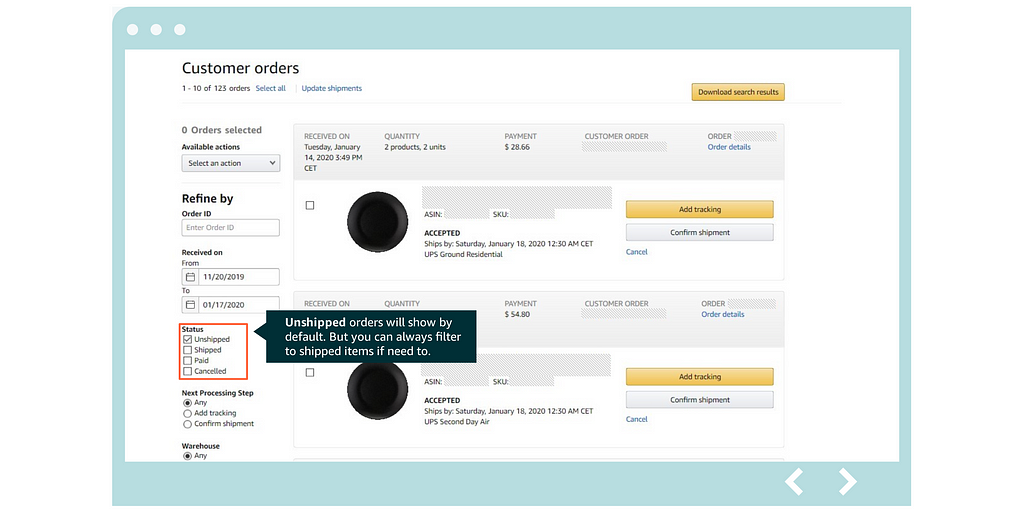
To access your Direct Fulfillment orders in Vendor Central, go to: Orders > Direct Fulfillment Orders
You can view both unshipped and shipped orders. By default, unshipped orders will be displayed, but you can filter to show shipped items if needed.
Receiving Orders
Orders received through Direct Fulfillment include detailed information on the latest shipping date and time. This information can be viewed under the “Expected Ship Date (ExSD)” and “Ship Method (SM).” It’s essential to note these details to avoid any delays or penalties.
Managing Orders in Bulk
Direct Fulfillment allows for bulk order management through spreadsheet updates, making it easier for vendors to process multiple shipments simultaneously. To manage orders in bulk:
- Download the Shipment Template: This template helps update all the relevant information for multiple orders.
- Edit Shipment Details: Fill in details like tracking numbers, package contents, etc.
- Submit the Spreadsheet: Upload the updated spreadsheet to Vendor Central to apply the changes.
Vendor Central Direct Fulfillment is a powerful tool for vendors who want to take control of the shipping process while leveraging Amazon’s vast reach. Staying proactive and detail-oriented with each order will lead to a smoother fulfillment experience, better customer satisfaction, and a strong partnership with Amazon.
For more information on the Amazon technical documentation for Vendor Central, see start with the SP-API Vendor Direct Fulfillment guide.
Unlock Effortless Data Management With Our Code-Free Amazon Vendor Central Integration
Amazon vendors can spend a lot of time and effort manually processing their data. Say goodbye to the hassle.
Openbridge automation will automatically collect, process, route, and load your Vendor Central data to a private destination.
- Catalog API
- Keyword Tracker
- Brand Analytics
- Retail Analytics
- Retail Procurement
- Direct Fulfillment
- Real-time Traffic
- Real-time Inventory
- Real-time Sales
- Amazon Advertising
Openbridge offers a seamless, automated solution that unifies your data into a private, trusted data warehouse or data lake like Amazon Redshift, Snowflake, Databricks, Google BigQuery, and more — all without a single line of code.
Why Choose Openbridge?
- Automate with Ease: Skip the manual report downloads and enjoy automated data feeds directly into your private cloud data warehouse or data lake.
- Data-Driven Insights: Leverage high-velocity data for machine learning, business intelligence, and more.
- Versatile Compatibility: Works effortlessly with Google Data Studio, Tableau, Microsoft Power BI, and other tools.
Openbridge automation extends beyond inventory to a broad collection of Amazon and non-Amazon data sources;
Automate And Unify Your Vendor Central Data — Free For 30 Days
Start your journey towards data-driven growth and profit with Openbridge. Our code-free, fully automated Selling Partner API integration simplifies your Vendor Central operations.
Ready to harness the power of your Vendor Central data?
→ Sign Up Now for Your Free 30-day Trial For Amazon Vendor Central Automation.
Exploring Amazon Vendor Central Direct Fulfillment was originally published in Openbridge on Medium, where people are continuing the conversation by highlighting and responding to this story.
from Openbridge - Medium https://ift.tt/c4yxhQv
via Openbridge
Monday, September 23, 2024

Mastering Amazon’s Near Real-Time Offer Data

Leverage Near Real-Time Price Updates, BuyBox Insights, and Competitor Analysis to Boost Your Amazon Sales Performance
Amazon provides sellers with continuous data points that deliver valuable insights into everything from pricing changes to inventory levels. These data points enable businesses to make informed decisions quickly, whether adjusting prices, monitoring sales trends, or ensuring products are eligible for the BuyBox.
Rather than manually checking for updates, third-party tools, or waiting for reports, this data can flow directly from Amazon, delivering data in near real-time. This is first-party, authoritative data directly from Amazon systems, which includes product-level price adjustments by competitors, shifts in BuyBox eligibility, and changes in product rankings.
Has A Product Offer Changed On Amazon?
Amazon will send data whenever the top 20 offers for a product change, such as a price adjustment or a change in the BuyBox winner.
What can you do with this data?
- Pricing Optimization: By constantly monitoring the landed and BuyBox prices, you can understand changes over time and optimize pricing strategies that balance sell-thru and profitability.
- BuyBox Eligibility Tracking: Monitoring the BuyBox eligible offers and BuyBox prices allows you to understand when and why you lose the BuyBox. This data can help inform adjustments to your pricing, shipping, and fulfillment strategy to increase your chances of winning.
- Competitor Analysis: By analyzing the lowest prices and the number of offers in various conditions, you can identify when competitors are undercutting your prices. This can trigger strategic adjustments in your offers, such as free shipping or discounts, to regain a competitive edge.
- Sales Performance Monitoring: Tracking the sales rank in various product categories helps you understand how price changes affect your product’s visibility and performance. A decline in sales rank could indicate the need to lower your price or offer promotional deals.
What Triggers Cause Changed Offers Updates?
There are a few primary types of changes to offers that will trigger new data to be sent by Amazon:
- External: A price change from a non-Amazon seller.
- Internal: A price change on Amazon’s retail site.
- Featured Offer: A change in the BuyBox winner or BuyBox price.
In addition to those changes, the item’s condition may experience a change (e.g., new, used, collectible), triggering an update from Amazon.
Now that we know what will trigger Amazon to send data, we can dig into the available data.
What types of offer data are available?
Amazon offers various products and competitive offers of data specific to the Amazon marketplace.
Number Of Offers
- Condition: The condition of the item (e.g., new, used, collectible).
- Fulfillment Channel: Whether the offer is fulfilled by Amazon (FBA) or the seller (MFN).
- Offer Count: The total number of offers for the specified condition and fulfillment channel.
Tracking the number of offers for each condition and fulfillment channel helps monitor market competitiveness. For example, many new offers suggest increasing competition, requiring you to revisit your pricing or inventory management.
Lowest Prices
- Landed Price: The price of the item plus shipping minus any Amazon Points.
- Listing Price: The price of the item before shipping costs.
- Shipping: The cost of shipping.
This pricing information provides a view of the cost to the customer. Comparing your landed price against the lowest offer enables you to refine pricing and offer strategies to remain competitive.
Buy Box Prices
- Landed Price: The total price (item price + shipping — points) for the BuyBox-winning offer.
- Listing Price: The price of the item for the BuyBox-winning offer.
- Shipping: The shipping cost for the BuyBox-winning offer.
Understanding the current BuyBox price allows you to adjust your offer to increase the likelihood of winning the BuyBox. If your landed price is too high compared to the BuyBox price, consider adjusting your listing price or offering free shipping to stay competitive.
ListPrice
- Amount: The suggested retail price from the manufacturer.
Comparing your price to the list price helps you gauge how aggressively you are pricing your item. Offering discounts below the list price can make your product more attractive to buyers, especially if competitors are sticking close to the MSRP.
Sales Rankings
- Product Category Id: The product category (e.g., lawn_and_garden_display_on_website).
- Rank: The rank of the product in that category.
Monitoring sales rank in specific categories helps track the performance of your product over time. If you notice a drop in rank, it might indicate that your product is priced too high, or that competitors are offering more attractive deals.
Number Of BuyBox Eligible Offers
- Condition: The condition of the item (e.g., new, used, collectible).
- Fulfillment Channel: Whether Amazon or the seller fulfills the offer.
- Offer Count: The total number of BuyBox-eligible offers.
Knowing how many offers BuyBox is eligible for allows you to better understand the competition. If there are many eligible offers, BuyBox becomes more competitive, requiring more aggressive pricing or fulfillment optimizations.
Understanding Competitive Product Offers
This section provides details about the top 20 competitive offers for the product, including seller ratings, shipping times, and prices.
- Seller Id: The identifier for the seller of the offer.
- Sub Condition: The sub-condition of the item (e.g., new, mint, very good).
- Seller Feedback Rating: Data on the seller’s feedback rating and total feedback count.
- Shipping Time: The estimated minimum and maximum shipping times for the offer.
- Listing Price: The price of the item.
- Shipping: The shipping cost.
- Is Fulfilled By Amazon: Indicates whether the offer is fulfilled by Amazon.
- Is BuyBox Winner: Indicates whether this offer is currently the BuyBox winner.
Analyze competitive offers to understand how they compare to your own. Offers with better seller feedback ratings or shorter shipping times might win the BuyBox even if their prices are slightly higher. Monitoring whether an offer is fulfilled by Amazon or eligible for Prime can also guide fulfillment decisions to stay competitive.
The Power of Storing Offer Snapshot Data for Long-Term Analysis
Many of these data points, such as pricing changes, offer fluctuations, and BuyBox eligibility, are transitory, meaning they reflect the current state of the market at a particular moment. If you do not store the snapshot, it is gone forever.
Without retaining this information, you cannot look back and see how these metrics evolved over time. Storing this data in your private data warehouse or data lake allows access to the cumulative history of how your offers, prices, and inventory have changed over time. This historical perspective allows for a level of analysis and strategic planning that competitors relying solely on real-time data will not have.
Here are a few opportunities:
- Historical Trend Analysis: By capturing data in real-time, you can build daily, weekly, or monthly trends for price fluctuations, inventory levels, and sales rank changes. This enables you to see how your pricing decisions impacted sales or how seasonality affects your product categories.
- Performance Benchmarking: Over time, you can use this data to set benchmarks for your performance. By comparing current metrics against previous weeks, months, quarters, or years, you can assess how well your strategies are performing and make data-driven decisions to adjust course if needed.
- Competitive Pricing Insights: Analyzing historical pricing data allows you to spot patterns in competitor behavior. For instance, you may notice recurring discounts from competitors at certain times of the year, allowing you to proactively adjust your pricing strategy to stay competitive.
- BuyBox Eligibility Monitoring: Monitoring changes in BuyBox ownership and tracking how often you’ve won or lost the BuyBox can reveal opportunities for optimization. By understanding the factors that influenced past BuyBox wins, such as pricing or fulfillment methods, you can refine your approach for future success.
- Seasonal and Market Trend Identification: Storing data over long periods allows for detailed analysis of broader market trends. Whether identifying product seasonality or spotting shifts in consumer behavior, long-term data can provide unique insights that are not available from real-time data alone.
Looking back over weeks, months, or even years can offer powerful and actionable insights, turning data into a long-term strategic asset.
Openbridge: A Code-Free, Fully Automated Solution
Teams seeking a rapid, hassle-free implementation with minimal setup time and no coding required will find Openbridge the perfect fit.
- Automation Accelerates Insights: Seamlessly integrate data with tools like Tableau, Looker, Power BI, Looker Data Studio, and AWS Quicksight for forecasting, analysis, reporting, and marketing efforts.
- Unify Data in Your Cloud Warehouse: Consolidate data in a trusted, private data lake or cloud warehouse such as Snowflake, Azure Data Lake, AWS Redshift, Databricks, AWS Athena, and Google BigQuery.
Openbridge provides a code-free, fully automated solution that swiftly and securely gets your offer data up and running.
Ready to harness the power of your Amazon data?
→ Sign Up Now for Your Free 30-day Trial For Amazon Notification API Offer Data Automation.
Mastering Amazon’s Near Real-Time Offer Data was originally published in Openbridge on Medium, where people are continuing the conversation by highlighting and responding to this story.
from Openbridge - Medium https://ift.tt/Bl9Er8M
via Openbridge
Monday, July 15, 2024

Mastering Amazon Cancelled Orders: A Comprehensive Guide for Sellers

Effectively Manage Amazon Order Cancellations, Improve Seller Metrics, and Optimize Your Amazon Business Performance
Understanding and effectively managing order cancellations ensures a healthy account and improves customer satisfaction for all Amazon sellers.
This comprehensive guide will walk you through the intricacies of Amazon's canceled orders, providing you with the knowledge and strategies to navigate this aspect of e-commerce successfully.
Understanding Amazon Order Cancellations
Order cancellations on Amazon occur when a purchase is terminated before the item is shipped. While cancellations are a normal part of e-commerce, they can impact your inventory management, seller metrics, and overall business performance if not handled properly.
The Buyer’s Perspective: When and How Customers Can Cancel Orders
Amazon provides buyers with a straightforward process for canceling orders, but the options available to them depend on the timing:
- Within the first 30 minutes: Buyers can cancel their order directly using the “Cancel Items” option in their Amazon account under “Your Orders.”
- After 30 minutes: Direct cancellation is no longer possible. Instead, buyers must submit a cancellation request for the seller to review.
Understanding this timeline is crucial for sellers, as it affects how you interact with cancellation requests and manage your inventory.
Types of Order Cancellations and Their Impact on Sellers
Amazon categorizes cancellations into several types, each with different implications for sellers:
- Official buyer-initiated cancellations: These are processed through Amazon’s system and don’t negatively impact your seller metrics.
- Unofficial buyer-initiated cancellations: When buyers request cancellations through the Buyer-Seller Messaging tool, these can affect your Cancellation Rate metric if not handled correctly.
- Seller-initiated cancellations: Occur when you can’t fulfill an order due to inventory issues, pricing errors, or other reasons. They generally impact your Cancellation Rate.
- Amazon-initiated automatic cancellations: Amazon may cancel orders automatically in certain situations, such as when a seller hasn’t confirmed shipment within seven days of the expected shipping date.
The Official Cancellation Process: Step-by-Step Guide
When a buyer submits an official cancellation request, follow these steps to process it:
- Log into your Seller Central account and go to “Manage Orders.”
- In the “Unshipped” tab, use the “Buyer Requested Cancel” filter to find relevant orders.
- Look for orders with a banner stating, “The buyer has requested that this order be canceled. Canceling this order will not affect your Cancellation Rate metric.”
- Click “Cancel order” under the Actions column.
- On the cancellation page, “Buyer canceled” will be pre-selected as the reason. This cannot be edited for official buyer-requested cancellations.
- Click “Submit” to complete the cancellation.
Processing cancellations this way ensures they won’t negatively impact your seller metrics.
Navigating Unofficial Cancellation Requests
When buyers request cancellations through the Buyer-Seller Messaging tool, it’s considered an unofficial request. These messages are typically labeled as “Inquiries from Amazon customers.” If you cancel an order based on these messages, it will count against your Cancellation Rate metric.
To handle these situations:
- Respond to the buyer’s message.
- Request that they submit an official cancellation through their Amazon account.
- Provide instructions: “You can cancel the order in your Amazon account at Your Account > Your Orders > Request Cancellation.”
This approach helps maintain your metrics while still addressing the buyer’s needs.
Impact of Cancellations on Seller Metrics
Amazon uses a Cancellation Rate metric to assess seller performance. Not all cancellations affect this metric equally:
- Official buyer-requested cancellations don’t impact your rate.
- Unofficial cancellations (via messaging) and seller-initiated cancellations do count against you.
- Some Amazon-initiated automatic cancellations may affect your rate, while others (like fraudulent buyer detection) don’t.
Maintaining a low Cancellation Rate is crucial for your account health and selling privileges.
Partial Cancellations and Refunds: What Sellers Need to Know
Amazon doesn’t currently support partial order cancellations. However, you can issue full or partial refunds for individual items in an order using the Refund Calculator in Seller Central. Remember, to initiate a refund, you must have already confirmed the shipment for the order.
Leveraging Technology for Efficient Cancellation Management
Amazon provides several tools to help sellers manage cancellations more effectively:
- Order Reports: A field called “is-buyer-requested-cancellation” is in your order reports. This field shows “TRUE” for orders with buyer cancellation requests.
- APIs for tracking cancellations: Selling Partner (SP) API includes cancellation information in order item responses, including a “isBuyerRequestedCancel” flag and “buyerCancelReason” string.
Utilizing this data can streamline cancellation management and help you stay on top of order status changes.
Best Practices for Minimizing Cancellations
While some cancellations are inevitable, you can take steps to minimize their occurrence:
1. Maintain accurate inventory levels to avoid stockouts.
2. Provide clear, detailed product descriptions to set accurate expectations.
3. Price your items competitively and accurately.
4. Process and ship orders promptly to reduce the window for cancellations.
5. Use vacation settings when you cannot fulfill orders to prevent unwanted orders and subsequent cancellations.
How to be a Data-Driven Advertiser with Amazon Cancelled Orders
Understanding and analyzing your canceled order data can provide valuable insights for your Amazon business. Here’s how you can leverage this information:
Manual Data Access Process
1. Log into your Amazon Seller Central account.
2. Navigate to the Reports section.
3. Generate order reports, including those with cancellation data.
4. Download these reports as CSV or Excel files for analysis.
While this process provides useful information, it can be time-consuming and may not offer real-time insights for frequent analysis.
Amazon Order Data Automation
To truly harness the power of your Amazon data, including insights from canceled orders, consider leveraging data automation solutions like Openbridge.
No more manual file downloads. Get code-free, fully automated Amazon Selling Partner API data pipelines for orders, inventory, traffic, fulfillment, finance, and more.
- FBA Fees
- Order Reports
- Finance API
- Fulfillment
- Inventory
- Sales & Traffic
- Orders API
- FBM/MFN PII
- Settlement
- Returns
Openbridge’s unified data approach can significantly enhance your reporting and analytics capabilities, powering tools like Google Data Studio, Tableau, Microsoft Power BI, Looker, Amazon QuickSight, SAP, Alteryx, dbt, Azure Data Factory, Qlik Sense, and many others.
This integration creates an analytics-ready single source of truth, enabling more effective decision-making across various aspects of your Amazon selling strategy.
Mastering Cancellations for Amazon Selling Success
Managing Amazon's canceled orders effectively is crucial for any successful seller. By understanding the different types of cancellations, following the correct procedures, and leveraging data and technology, you can minimize the negative impact of cancellations on your business.
Remember, while cancellations are a normal part of e-commerce, how you handle them can set you apart as a top-performing Amazon seller.
Getting Started with Amazon Cancelled Orders Automation
Ready to take your Amazon business to the next level? Ditch the messy, manual reporting for Amazon Cancelled Orders.
>>>>
Get a 30-day free trial to try Amazon Orders automation and see how it can transform your approach to Amazon selling.
<<<<<
Mastering Amazon Cancelled Orders: A Comprehensive Guide for Sellers was originally published in Openbridge on Medium, where people are continuing the conversation by highlighting and responding to this story.
from Openbridge - Medium https://ift.tt/RjIcHpN
via Openbridge
Tuesday, July 9, 2024
Amazon Pending Orders: A Comprehensive Guide
Turn Pending Orders into Actionable Insights for Your Business
As an Amazon seller, you’ve likely encountered orders with a “Pending” status in your Seller Central account. These orders can be a source of confusion and concern, especially for new sellers.
While sometimes frustrating, pending orders are an important part of Amazon’s process for ensuring secure and valid transactions.
By following the guidelines outlined in this article and staying patient, you can confidently and professionally navigate the world of pending orders.
What Are Amazon Pending Orders
Pending orders on Amazon are transactions that have been initiated but not yet fully processed or approved. They appear in your Manage Orders page's “Pending” tab in Seller Central. These orders are in limbo — a buyer has placed them, but they haven’t been finalized for shipment for various reasons.
Understanding that pending orders are a normal part of the Amazon selling process is crucial. They don’t necessarily indicate a problem with the order or your account. Instead, they represent a temporary status while Amazon verifies certain aspects of the transaction.
Why Do Orders Go into Pending Status?
Several factors can cause an order to enter pending status. Let’s explore the most common reasons:
- Payment Authorization Issues are one of the most frequent causes of pending orders. Amazon may be unable to obtain authorization for the buyer’s credit card. This could be due to insufficient funds, expired card information, or other payment-related problems.
- Convenience Store Payment Methods: Amazon offers convenience store payment options in some regions. When a buyer selects this method, the order remains pending until they complete the payment at a physical store.
- FBA Order Logistics: For Fulfillment by Amazon (FBA) orders, two scenarios can lead to pending status:
— If the buyer qualifies for free shipping, the order may remain pending until all items are gathered.
— In multi-item orders where one item is out of stock, the entire order may show as pending even if Amazon decides to split the shipment. - Subscribe & Save Deliveries: These orders are often placed several days before the scheduled delivery date. This allows Amazon to align subscription sign-ups with weekly or monthly delivery dates and ensure inventory is reserved for upcoming deliveries.
Understanding these reasons can help you better manage your expectations and respond appropriately to pending orders.
How to Identify Pending Orders
Identifying pending orders is straightforward, but it’s important to know where to look:
- Log into your Seller Central account.
- Navigate to the Manage Orders page.
- Click on the “Pending” tab.
For FBA sellers, there’s an additional step:
- Check the “View FBA Orders” tab to see pending orders fulfilled by Amazon.
It’s worth noting that pending orders don’t appear in your Orders report or Unshipped Orders Report. This separation helps you focus on actionable orders while Amazon processes the pending ones.
The Impact of Pending Orders on Your Inventory
While pending orders are in a state of flux, they do impact your available inventory. Here’s how:
- The quantity available for the listing is subtracted from your quantity in Manage Inventory.
- If only one item was available when the order was placed, the listing will be removed from the Amazon offer page.
- In Manage Inventory, the item will appear with a quantity of zero while the order is being processed.
This inventory management approach ensures that you don’t oversell items tied up in pending orders. However, it’s important to remember this when managing your stock levels.
What Should You Do with Pending Orders?
The golden rule for pending orders is simple: don’t ship them. Even if a buyer contacts you directly about a pending order, resist the urge to fulfill it. Here’s why:
- Payment Uncertainty: Until the order moves out of pending status, the payment cannot be guaranteed to be processed successfully.
- Lack of Information: Pending orders don’t include the buyer’s shipping address or complete contact information.
- Amazon’s Policies: Shipping a pending order goes against Amazon’s seller policies and could potentially lead to account issues.
If a buyer contacts you about a pending order, the best action is to refer them to Amazon Customer Service. This ensures that any payment or processing issues are handled through the proper channels.
Can You Cancel a Pending Order?
As a seller, you don’t have the option to cancel an order while it’s pending. The “Cancel order” button becomes available only after the order moves to an “Unshipped” status.
If a buyer contacts you wanting to cancel a pending order, advise them to contact Amazon Customer Service directly. Only Amazon can cancel orders in pending status.
The Lifecycle of a Pending Order
Understanding the potential paths a pending order can take helps you manage your expectations and inventory:
- Pending to Unshipped: This is the ideal scenario. Once Amazon verifies the payment method, the order status changes to “Unshipped.” The “Confirm shipment” and “Cancel order” buttons become available in Manage Orders.
- Pending to Canceled: If there are unresolvable issues with the payment or the buyer cancels through Amazon, the order will be canceled directly from the pending status.
- Extended Pending Status: In some cases, Amazon’s verification processes can extend the pending status for up to 21 days. While rare, contacting Seller Support is advisable if an order remains pending beyond this period.
Best Practices for Managing Pending Orders
To effectively handle pending orders and maintain a smooth-running Amazon business, consider these best practices:
- Regular Monitoring: Make it a habit to check your pending orders daily. This will help you stay on top of your inventory and be prepared when orders move to “Unshipped” status.
- Patience is Key: Remember that pending orders are part of Amazon’s process to protect buyers and sellers. Allow the system time to work through any issues.
- Maintain Adequate Inventory: Pending orders tie up your inventory, so ensure you have enough stock to accommodate pending and new orders.
- Prompt Action on Status Changes: When an order moves from pending to unshipped, process it quickly to maintain good performance metrics.
- Clear Communication: If buyers contact you about pending orders, provide clear, professional responses that direct them to Amazon Customer Service for order-specific queries.
How to be a Data-Driven Advertiser with Amazon Pending Orders
While pending orders seem minor to your Amazon business, they can provide valuable insights when analyzed as part of your overall sales data. Here’s how you can leverage this information:
Manual Data Access Process
- Log into your Amazon Seller Central account
- Navigate to the Reports section
- Generate relevant order reports, including those that show pending order data
- Download these reports as CSV or Excel files
This manual process, while informative, can be time-consuming and may not provide real-time insights for frequent analysis.
Leveraging Amazon Order Data Automation
To truly harness the power of your Amazon data, including insights from pending orders, consider leveraging data automation solutions like Openbridge. These tools offer several advantages:
- Direct, automated access to Amazon order data, including pending order information
- Seamless integration with existing business systems
- Elimination of manual report downloads, saving time and reducing errors
- Increased data velocity, allowing for more timely decision-making
- Unified performance data delivery to leading data lakes and cloud warehouses
No more manual file downloads. Get code-free, fully automated Amazon Selling Partner API data pipelines for orders, inventory, traffic, fulfillment, finance, and more.
- FBA Fees
- Order Reports
- Finance API
- Fulfillment
- Inventory
- Sales & Traffic
- Orders API
- FBM/MFN PII
- Settlement
- Returns
Openbridge’s unified data approach can significantly enhance your reporting and analytics capabilities and powering tools like Google Data Studio, Tableau, Microsoft Power BI, and many others.
The Openbridge platform creates an analytics-ready single source of truth, enabling more effective decision-making across various aspects of your Amazon selling strategy.
Getting Started with Amazon Pending Orders Automation
Ready to take your Amazon business to the next level? Ditch the messy, manual reporting for Amazon Pending Orders.
->>> Get a 30-day free trial to try Amazon Orders automation and see how it can transform your approach to Amazon selling.
Amazon Pending Orders: A Comprehensive Guide was originally published in Openbridge on Medium, where people are continuing the conversation by highlighting and responding to this story.
from Openbridge - Medium https://ift.tt/rV0oEpq
via Openbridge
Thursday, July 4, 2024

Data Kiosk Deep Dive: Mastering NewAmazon Reporting API

Custom Amazon Reports Using SP-API’s Powerful Data Kiosk GraphQL Queries
Data Kiosk is a robust tool designed to assist Amazon selling partners in dynamically generating and managing custom reports through GraphQL queries.
This comprehensive guide provides an in-depth look at how to set up, use, and maximize the benefits of Data Kiosks in their current form.
Now, let’s dive into Data Kiosk!
Key Features and Benefits
GraphQL-Based Reporting
Data Kiosk leverages GraphQL, a powerful query language for APIs that allows for dynamic and efficient querying. Unlike traditional REST APIs, GraphQL enables clients to request the data they need in a single request, reducing the amount of data transferred over the network and improving performance. This makes it a superior choice for complex and detailed reporting needs.
Interactive Documentation
One of the standout features of Data Kiosk is its interactive documentation. Detailed schemas, data field definitions, and a user-friendly Schema Explorer are readily available. This tool simplifies the process of understanding data structures and building queries, making it accessible even for users who are new to GraphQL. The Schema Explorer enhances user experience and efficiency by providing real-time feedback and detailed descriptions.
Custom Report Generation
Data Kiosk simplifies the creation of custom reports tailored to specific business needs. Instead of calling multiple reports and manually combining data, users can generate comprehensive reports with a single query. This not only saves time but also reduces the complexity of data processing. Users can leverage advanced filtering and sorting options to create highly specific and useful reports.
Security and Role-Based Access
Ensuring data security is a top priority for Data Kiosk. It employs role-based access control, ensuring only authorized users can access sensitive data. Each field available through Data Kiosk requires specific roles, and queries are visible only to the requester, enhancing security. This level of control ensures that sensitive business data is protected and accessed appropriately.
JSONL Format
Data Kiosk provides results in JSON Lines (JSONL) format, simplifying the processing and parsing of large datasets. Each line in a JSONL file represents a separate JSON object, making it easier to handle streaming data and process records individually. This format is particularly useful for handling large volumes of data efficiently.
Pagination and Throttling
Data Kiosk supports pagination with the next tokens, allowing users to navigate large datasets efficiently. Additionally, it includes mechanisms to handle rate limits and prevent query backlogs, ensuring smooth and uninterrupted data access. These features are critical for maintaining performance and reliability, especially when dealing with extensive data sets.
Setting Up Data Kiosk
Initial Setup and Configuration
Setting up Data Kiosk involves subscribing to notifications using the Notifications API and Amazon Simple Queue Service (SQS). This allows users to receive updates when a query has finished processing. To subscribe, users need to configure a destination for the notifications and establish subscriptions as per the Notifications API v1 Use Case Guide. Assigning appropriate roles to users for accessing different datasets is crucial for maintaining data security.
Using the Schema Explorer
The Schema Explorer is a key tool for navigating Data Kiosk. It provides a user-friendly interface for visualizing data schemas and building queries. Users can utilize the dropdown selector to choose the schema they want to explore, use the search bar to find specific fields, and click on fields and data types to view detailed information. The Query Builder assists in constructing and testing queries, and schemas can be downloaded for offline use.
Creating and Managing Queries
Creating Queries
Creating queries in Data Kiosk involves understanding the structure of GraphQL queries and ensuring they are valid. A GraphQL query consists of fields, arguments, and return types. Users must ensure the query adheres to the schema and includes necessary fields. Handling quotation marks properly is essential to prevent syntax errors. For example, the following query fetches sales data by date:
POST https://sellingpartnerapi-na.amazon.com/dataKiosk/2023-11-15/queries
{
 “query”: “{analytics_salesAndTraffic_2023_11_15{salesAndTrafficByDate(startDate:\”2023–11–15\”)}}”
}
Processing and Monitoring Queries
After submitting a query, it is essential to monitor its progress and handle any errors that may occur. Users can submit queries using the `createQuery` operation, which will return a `queryId` if the request is successful. The progress of the query can be monitored using the `getQuery` operation, which will indicate when the query status is marked as `DONE`, `CANCELLED`, or `FATAL`. Handling errors involves differentiating between synchronous errors (occurring during query creation due to syntax issues) and asynchronous errors (occurring during processing and returned as error documents).
Retrieving and Using Data
Downloading Query Results
Once a query has been processed, the results can be retrieved using the `getDocument` operation. Users must provide the `dataDocumentId` or `errorDocumentId` to retrieve the document. The response includes a pre-signed URL for downloading the document, which expires after five minutes. Handling compressed data documents appropriately is crucial, as the `Content-Encoding` header will specify the compression method used.
Data Formats and Best Practices
Data Kiosk uses the JSONL format for its results, which offers several benefits for processing and streaming data. Each line in a JSONL file represents a separate JSON object, making it ideal for handling large datasets. JSONL simplifies streaming data processing, as each record can be processed individually. Optimizing data retrieval involves requesting only the necessary fields to minimize data transfer and improve performance and using filtering capabilities to narrow down query results based on specific criteria.
Advanced Features and Use Cases
Custom Reports and Analytics
Data Kiosk enables users to generate custom reports and perform detailed analytics. Users can tailor reports to specific business needs by selecting relevant fields and applying filters. Advanced GraphQL features can be utilized for complex data manipulations, such as sorting data based on specific criteria to gain valuable insights.
Real-World Use Cases
Data Kiosk can be used in various scenarios to optimize business operations. For sales and traffic analysis, users can generate reports to analyze sales trends and traffic metrics. An example query to fetch sales data by date or ASIN can provide detailed insights. Data Kiosk helps monitor inventory levels and manage stock efficiently for inventory management. Custom queries for performance metrics allow businesses to evaluate the effectiveness of marketing campaigns and other initiatives.
Troubleshooting and Support
Common Issues and Solutions
Addressing common issues in Data Kiosk involves understanding error messages and implementing solutions. Syntax errors can be identified and fixed by reviewing the query structure and parameters. Managing query concurrency limits is essential to avoid throttling errors, which can be achieved by implementing a request queue for handling sequential processing of requests.
Accessing Support
For additional help, users can access various developer resources and contact support teams. Comprehensive guides and tutorials are available in the documentation, and community forums provide a platform for discussing issues and sharing solutions. GitHub repositories offer sample applications and code examples. Users can also contact Amazon support teams for specific issues, providing detailed information about the problem to receive accurate assistance.
Security and Compliance
Data Security Measures
Data Kiosk prioritizes data security through various measures. Role-based access control ensures only authorized users can access sensitive data, with specific roles required for different datasets. Maintaining encryption at rest for all query result documents is crucial, and unencrypted query result document content should never be stored on disk.
Compliance with Policies
Adhering to Amazon’s API usage policies and data protection regulations is crucial for Data Kiosk users. Understanding and following Amazon’s API usage policies helps avoid potential issues, and regular reviews of these policies ensure compliance. Implementing the best data security and privacy practices is essential for safeguarding sensitive information.
Limitations of Data Kiosk
Despite its robust features and potential, Data Kiosk has several limitations that users should know. Understanding these limitations is crucial for setting the right expectations and planning accordingly.
Lack of Parity with Current Reporting API
One of the most significant limitations of Data Kiosk is that it does not yet offer full parity with the existing Reporting API. While Data Kiosk introduces a powerful new reporting framework, it does not yet support all the functionalities and data points available in the current Reporting API. Users relying heavily on the Reporting API's comprehensive capabilities may find the Data Kiosk lacking in some areas.
Primary Use Case: Exposure to a New Reporting Framework
Data Kiosk is primarily intended to expose users to a new reporting framework. It aims to glimpse the future of dynamic and flexible reporting via GraphQL, but it has not yet been designed to replace the existing reporting API. This transitional phase is essential for gathering user feedback and iterating on the features before achieving full parity and production readiness.
Limited Data Sets and Features
Currently, Data Kiosk supports a limited set of data types and features compared to the comprehensive offerings of the Reporting API. Users might encounter constraints in the types of data they can query and the complexity of the reports they generate. This limitation is expected to diminish over time as Amazon expands the capabilities of Data Kiosks.
Evolving Schema and API Changes
As Data Kiosk evolves, users should anticipate schema and API structure changes. These changes are part of the iterative improvement process but can lead to disruptions if users are not prepared to adapt their queries and integrations accordingly. Staying updated with the latest documentation and release notes is essential for minimizing potential issues.
No Support for Legacy Data Structures
Data Kiosk does not support some legacy data structures and formats that are available in the current Reporting API. This limitation can be a barrier for users who need access to historical data or specific report formats that have not yet been integrated into the Data Kiosk.
Not Production Ready
Given its current state, Data Kiosk should not be considered production-ready for critical business operations. While it can be used for testing, learning, and exploring new reporting capabilities, relying on it for production-level reporting might lead to gaps and inefficiencies. Users are advised to continue using the existing Reporting API for production needs until the Data Kiosk matures and achieves full feature parity.
While Data Kiosk is an exciting new option, it’s important to note that you can also access Amazon data through Openbridge’s automated connectors and integrations, as detailed in these articles:
- Amazon Releases New Selling Partner API (SP-API): Overview of Amazon’s modern Selling Partner API, which Data Kiosk is built upon
- Verified Amazon Connector for Google Sheets: Automate Amazon data access in Google Sheets
- Unlocking Amazon Vendor Central Data With New API: Using SP-API to access Vendor Central data
- Code-free Amazon Vendor Central Software: No-code solution to automate Amazon data
- Amazon Vendor Central EDI or API Integration?: Comparing EDI vs API for Vendor Central integration
Summary
While Data Kiosk presents an exciting opportunity to explore a new and dynamic reporting framework, it is important to recognize its current limitations.
The lack of full parity with the existing Reporting API and its status as not production-ready are critical user considerations. By understanding these constraints and planning accordingly, users can effectively leverage Data Kiosk for testing and learning while continuing to rely on the existing Reporting API for critical business operations.
As the Data Kiosk evolves, it is expected to overcome these limitations and offer a comprehensive, production-ready reporting solution.
Get Amazon Data Today!
Our direct, code-free data integration provides reliable, integrated data automation solutions for Seller Central And Vendor Central that allow you to;
- Unify data in a trusted, private industry-leading data lake, data lakehouse, or cloud warehouses like Databricks, Amazon Redshift, Amazon Redshift Spectrum, Google BigQuery, Snowflake, Azure Data Lake, Ahana, and Amazon Athena. Data is always fully owned by you.
- Take control, and put your data to work with your favorite analytics tools. Explore, analyze, and visualize data to deliver faster innovation while avoiding vendor lock-in using tools like Google Data Studio, Tableau, Microsoft Power BI, Looker, Amazon QuickSight, SAP, Alteryx, dbt, Azure Data Factory, Qlik Sense, and many others.
>> Get a 30-day free trial of the Openbridge code-free, fully automated platform for Amazon Vendor Central, Amazon Seller Central, and Amazon Advertising. <<
Data Kiosk Deep Dive: Mastering NewAmazon Reporting API was originally published in Openbridge on Medium, where people are continuing the conversation by highlighting and responding to this story.
from Openbridge - Medium https://ift.tt/6VeRGCL
via Openbridge
Wednesday, July 3, 2024

Kickstart Your Journey with Amazon Sponsored Ads: A Beginner’s Blueprint

Discover how to use Amazon’s ad platform effectively to grow your brand.
Growing your Brand on Amazon requires a multi-pronged advertising approach that engages shoppers at each stage of their non-linear journey.
Leveraging a strategic mix of Amazon Advertising Sponsored Ad solutions can drive your products' awareness, consideration, purchase, and loyalty. This guide explains how to choose the right tactics and measure success.
1. Setting the Stage: Defining Goals for Amazon Ad Success
A strong advertising strategy starts with well-defined goals. On Amazon, your objectives will likely include:
Capturing Attention: Initiating Brand Awareness
Awareness campaigns aim to generate interest in your Brand and products among new audiences. Success metrics include:
Key Awareness Campaign Metrics
- Impressions: How many times your ad was displayed
- Viewable Impressions: Impressions displayed on screen for over one second
Key Awareness Brand Metrics
- Branded Searches: Searches for your brand terms that didn’t lead to engagement. See Brand Analytics provides powerful insights to optimize your advertising strategy.
Example: A dog food brand runs a Sponsored Display to engage relevant lifestyle audiences and then measures impressions to gauge brand exposure.
Engaging Potential Customers: Deepening Consideration
Consideration campaigns entice browsers to explore your offerings more deeply.
Key Consideration Campaign Metrics
- Clicks: Number of ad clicks
- Click-Thru Rate: Ratio of clicks to impressions
- Detail Page Views: Product page views, including organic traffic
Key Consideration Brand Metrics
From your Brand Metrics, measure changes in:
- Detail Page View Only
- Brand Searches and Detail Page Views
- Add to Cart
Example: Snack brand runs Sponsored Brand keyword-targeted campaigns promoting products to category browsers. They measure clicks and detail page views.
Sealing the Deal: Driving Purchases on Amazon
Purchase campaigns aim to convert interested shoppers. Focus on:
Key Purchase Campaign Metrics
- Total Sales: Revenue generated
- ROAS: Total sales divided by ad spend
Key Purchase Brand Metrics
- Brand Customers: Unique purchasers
- Top 10% Customers: Your most loyal buyers
Example: A hair care brand runs Sponsored Products, retargeting shoppers who view products but don’t buy. They optimize based on sales and ROAS. See Data-Driven Amazon TACoS Insights.
Cultivating Brand Loyalty Through Targeted Ads
Loyalty campaigns nurture repeat purchases and brand advocacy via:
Key Loyalty Metrics
- Subscribe & Save signups
- Brand Follows
Example: A CPG brand runs posts with brand-follow prompts that offer deals and exclusive content. They measure engagement and follower growth.
For metrics and reporting opportunities, see Automating your Amazon advertising data and The Best Amazon Advertising Tools For Sellers & Vendors.
Decoding the Shopper’s Path: A Guide to Non-Linear Journeys
Shoppers interact with brands in various sequences as they move between stages.
Reaching shoppers across this complex flow requires showing up where they are with relevant messaging. Awareness and consideration touchpoints are especially crucial to growing your audience.
Selecting Optimal Ad Solutions for Maximum Impact
Amazon’s suite of ad solutions supports your objectives:
- Stores: A dedicated brand destination to immerse shoppers in your story and products
- Sponsored Brands: Keyword-targeted ads promoting your Brand and products in search results
- Sponsored Display: Product and interest-targeted display ads on and off Amazon
- Sponsored Products: Keyword and product-targeted ads in shopping results
- Posts: Shoppable brand-building content that appears in feeds and product pages
- Brand Follow: Lets shoppers follow your Brand and get notifications about deals, products, and Posts
- Brand Metrics: Measurement tool showing how your Brand stacks up in your category
How to select and optimize keywords for your ad campaigns
Keyword targeting matches your ads to shopping queries shoppers use when searching on Amazon.
Automatic vs Manual Targeting
Automatic targeting for Sponsored Products allows Amazon to select keywords for you based on product information. Manual targeting for sponsored products and brands lets you choose keywords and bids.
When to Use Automatic Targeting
- Launching a new campaign
- Wanting to leverage Amazon algorithms to find new opportunities
When to Use Manual Targeting
- Have proven keywords to allocate more aggressive bids
- Want control over keyword-level optimizations
Keyword Mastery: Targeting the Right Terms in Amazon Sponsored Ads
Match types refine how shopping queries can trigger your keyword-targeted ads:
- Broad Match: Queries can contain keywords in any order with other terms. Use for discovering opportunities.
- Phrase Match: Queries must contain the exact keyword or close variants in the same order but can include other terms before/after. Use for more relevant traffic.
- Exact Match: Queries must match the keyword exactly or very closely with no additional terms. Use for most relevant traffic.
- Negative Match: Queries matching the negative keyword exactly or closely will not show an ad. Use this to avoid irrelevant traffic and wasted spending.
Choosing Keywords
- Broad Match Example: A beverage brand used a broad match for the “healthy drink” keyword in a new product campaign, uncovering relevant longtail variations like “fruit drink healthy” and “fizzy drink healthy.” This drove sales and revealed new marketing angles.
- Negative Match Example: An eyeglass brand selling only 50 TVs added “60-inch TV” as a negative phrase match to avoid impressions and clicks from shoppers wanting larger sizes it doesn’t carry.
Targeting Tactics: How to Promote Your Products Effectively on Amazon
Product targeting lets you promote your products on related product detail pages and category-level shopping results.
- Targeting by Category: Choose relevant categories to show your ads. Then, further refined by Brand, price range, star rating, or other criteria shoppers use. Ex: A running shoes brand could target the “men’s running shoes” category, then refine it to similar brands and price points.
- Targeting by ASIN: Select individual products to show your ad by searching for or uploading ASINs. Choose complementary or competitive products to engage high-potential audiences. Ex: The shoe brand could target product pages of competing or accessory product ASINs.
- Using Negative Product Targeting: Keep your ads from showing on specific product pages or categories that need to meet performance goals. Ex: The shoe brand could exclude unrelated products in targeted categories, like shoe horns.
Implementing Product Targeting: A Step-by-Step Guide for Amazon Sellers
When creating your campaign, select “Product Targeting” rather than “Keyword Targeting.” Then, follow the prompts to choose categories and ASINs.
Here is an example of an electronics brand selling a new digital camera;
1. Target broad “Electronics” and “Camera & Photo” categories to reach engaged shoppers
2. Narrow targeting to the “Digital Cameras” sub-category
3. Exclude irrelevant products like camera cases with negative ASIN targeting
Strategic Bidding: Optimizing Your Amazon Ad Spend for Best Results
Fine-tuning your keyword and product targeting is just one piece of the puzzle. To get the most out of your sponsored ads, you also need to dial in your bidding and budgeting approach.
Combining Keyword and Product Targeting
We recommend using keyword and product targeting together for Sponsored Products to maximize your reach and relevance. Sellers can use both in the same campaign but in different ad groups. Vendors are limited to one targeting type per campaign. Don’t worry about bidding against yourself — the system accounts for this.
Precision Bidding: How to Adjust Your Bids for Optimal Ad Placement
The “Adjust Bids by Placement” feature for Sponsored Products lets you bid more aggressively for specific ad placements:
- Top of Search (First Page): The premium placement at the top of the first search results page. Use a higher bid adjustment (e.g., +50–100%) to win this spot.
- Product Pages: Your ads on product detail pages and add-to-cart pages. Modest bid adjustment (e.g., +25%) can help you stay competitive.
- Rest of Search: All other search result placements. Your base bid applies here.
Your bid adjustments stack on top of your base bid and bidding strategy. For example, a $1.00 base bid with 50% top-of-search adjustment and dynamic bidding down would only have a $1.50 max bid for top-of-search but may reduce bids for other placements based on conversion likelihood.
Selecting Effective Bidding Strategies for Amazon Ads
Sponsored Products offers dynamic bidding and fixed bidding options:
- Dynamic Bids — Down Only: Amazon may reduce your bid for placements less likely to convert, never exceeding your base bid.
- Dynamic Bids — Up and Down: Amazon may increase your bid to 100% for top-converting placements and reduce it for low-converting placements.
- Fixed Bids: Your exact bid is used regardless of placement.
If your goal is to drive volume efficiently, dynamic bidding can help stretch your budget further. To focus on specific placements, use fixed bids with bid adjustments.
Sponsored brand ads have two bidding choices:
- Automated Bidding: Allows Amazon to automatically adjust bids below your max bid to optimize for your target ACoS.
- Custom Bid Adjustments: You can increase or decrease bids up to 99% for placements below the top of the search. Your base bid is used to top the search.
Budgeting for Success: Managing Your Amazon Ad Budget
Set your campaign budgets high enough to keep your ads showing throughout the day. If you’re consistently hitting your daily budget early, raise it by 10–20% until you’re no longer limited by budget to maximize visibility.
By combining keyword and product targeting, choosing the right bidding strategies, and setting competitive bids and budgets, you can ensure your sponsored ads work as hard as possible to grow your Brand on Amazon. Monitor performance and adjust as needed to hit your brand and efficiency goals.
Preparing Your Products for the Spotlight: Retail Readiness
Ensuring your products are retail-ready before launching any Amazon advertising campaign is critical. Retail readiness means your product detail pages include all the information a customer needs to make a purchase, such as:
- Clear, high-quality images
- Descriptive title and bullet points
- Relevant keywords in the listing copy
- Competitive price
- Ample inventory
- Product reviews
The Importance of Retail Readiness: Ensuring Your Products Stand Out
Understanding the non-linear shopper journey is key to effective advertising. Reaching shoppers across this complex flow requires showing up where they are with relevant messaging. Awareness and consideration touchpoints are especially crucial to growing your audience.
Driving shoppers to an incomplete or uncompelling product page is a fast way to save ad spend. Retail-ready pages ensure potential customers can easily find the information they need to convert.
Amazon customers rely heavily on product content when making purchase decisions online. A detail page is the digital equivalent of your in-store packaging and salesperson. It must answer critical questions, overcome objections, and convince shoppers yours is the best product for them.
Additionally, retail readiness impacts your ad performance. Amazon’s algorithms consider your click-through rates, detail page views, and conversion rates in determining your ad placements. Relevant, engaging pages with strong sales history get more impression share.
Deciphering Amazon’s Retail Terms: A Quick Guide
Let’s review a few key terms related to retail readiness on Amazon:
- Product Detail Page: This is the page on Amazon where customers land after clicking your ad. It contains all product information, including titles, images, bullet points, descriptions, prices, and reviews.
- ASIN: Amazon Standard Identification Number, Amazon’s unique SKU for each product variation. Each ASIN has its detail page. Variations of a product like size and color are called “child ASINs” and roll up to a “parent ASIN.”
- Featured Offer: The purchase offer featured on a product detail page is determined by price, shipping speed, and seller rating. Customers who click “Add to Cart” or “Buy Now” purchase from the featured offer by default.
The Power of Product Detail Pages: Why They Matter
Mastering the art of product detail page optimization is essential for any online retailer. By focusing on clarity, interactivity, and customer engagement, brands can significantly enhance their online presence and sales potential.
A well-optimized product detail page enhances user experience and serves as crucial virtual shelf space for your Brand. See Amazon Sellers and Vendors: Building Brand Loyalty for more on creating compelling product pages.
Here’s how to optimize your product pages for visibility and conversion.
The Significance of Product Detail Pages
A product detail page is where your customers decide to purchase. It acts as the point of sale online, much like a physical checkout counter. This page must provide essential product information and facilitate a smooth and convincing purchase process. It is a brand’s opportunity to differentiate itself by clearly and attractively presenting its products.
Key Components of a Product Detail Page
To mimic the effectiveness of in-store merchandising, every detail on the page should be thoughtfully curated. Here are the main elements to focus on:
- Title and Description: These should be clear and concise, providing all necessary details, such as size, color, and compatibility.
- Images and Videos: Using high-quality images and videos that accurately represent the product is crucial. Include multiple views and a ‘what’s in the box’ image to reassure customers of their purchase.
- Customer Reviews and Ratings: To build trust and encourage sales, aim for a high number of reviews and a rating of at least 3.5 stars.
- Inventory and Pricing: Ensure your products are competitively priced in stock to prevent cart abandonment.
Assessing Your Retail Readiness
To check if your products are retail-ready, evaluate your detail pages:
- Do your titles, bullets, and descriptions include relevant search keywords?
- Are your images clear, informative, and high quality?
- Have you filled out all attributes completely with accurate, helpful information?
- Are you priced competitively after considering shipping?
- Do you have enough inventory in stock?
- Are you winning the featured offer regularly?
- Do you have product reviews and a star rating?
Optimizing for Retail Readiness
If your pages don’t meet retail readiness criteria, prioritize the following actions:
- Upgrade your image quality and add more relevant photos/videos
- Revise your product title and bullets to include top keywords
- Expand your product description, answering key customer questions
- Review pricing — can you offer a more competitive price or shipping options?
- Increase your available inventory
- Encourage reviews via product inserts or follow-up emails
Remember, your product detail page is your best sales tool on Amazon. Optimizing it will result in higher conversion rates, better ad performance, and, ultimately, more sales. By ensuring retail readiness, you set your sponsored ads campaigns up for success before they even begin.
Optimizing Product Pages for Better Performance
- Ensure high-resolution images that meet platform guidelines, such as a pure white background and product filling 80–100% of the image frame.
- Include detailed, concise product descriptions that highlight key features.
Enhancing Product Visibility
- Use A+ content for a richer presentation, including videos and comparison charts.
- For sellers enrolled in Amazon’s Brand Registry, utilize Enhanced Brand Content (EBC) for added customization and branding.
Leveraging Promotions
- Implement promotional strategies such as Lightning Deals or Subscribe & Save to boost visibility and encourage purchases.
- Combine promotions with Amazon PPC campaigns to drive significant traffic to your product pages.
Each element — from compelling visuals to strategic promotions — is crucial in converting potential buyers into loyal customers. Creating and optimizing each product page meticulously is essential for success in digital retail environments.
Leveraging Brand Metrics to Uncover Growth Opportunities
Ads and Brand Metrics help you benchmark your performance against competitors and identify areas for improvement.
Assessing Performance vs. Competitors
See how your Brand compares in key metrics like awareness, consideration, and conversion. Look for areas where you lag to focus on.
Measuring Return on Engagement
Brand Metrics shows the estimated ROI from shoppers engaging with your Brand over the past 12 months. Use this to gauge the quality of your audiences.
Making Strategic Campaign Decisions
Based on your goals and insights, craft campaigns to move shoppers down the funnel:
- Awareness Strategies: Introduce your Brand using Sponsored Brands and Sponsored Display. Lifestyle imagery and category keywords help attract relevant new audiences.
- Consideration Strategies: In sponsored products and store content, feature specific product benefits and unique selling points. Use detailed page traffic and purchase rate to see what resonates.
- Purchase Strategies: With sponsored displays, retarget high-intent audiences like past brand shoppers, product viewers, and competitors’ customers. Promote seasonal deals and best sellers.
Becoming a Data-Driven Advertiser on Amazon
Sponsored ads are essential tools for growing your business on Amazon. By aligning your tactics with your objectives, engaging shoppers across the journey, and leveraging data, you can craft campaigns that build your Brand and bottom line.
Maximizing your campaigns requires timely, unified reporting to surface trends and optimization opportunities, especially when looking at off-Amazon performance. For example, using Amazon Attribution to understand how your non-Amazon marketing tactics contribute to shopping engagement and sales. Attribution insights can help you optimize campaigns to drive more efficient growth. See Why Amazon Attribution reporting data supercharges insights.
Challenges of Manual Reporting: Navigating the Data Jungle
Accessing your campaign and brand data often requires logging in to Seller Central or Vendor Central to manually download spreadsheets and stitch them together. This is tedious and delays insights.
Advantages of Automated Reporting: Streamlining Your Amazon Ad Insights
Connecting your Amazon data with an automated solution like Openbridge enables you to automate the metrics flow to a dashboard or data warehouse. Unifying data speeds up time to insight and eases reporting.
Additional Amazon Advertising Resources
To dive deeper into Amazon advertising strategies, reporting, and optimization best practices, check out these additional resources:
- Breaking Barriers: Amazon Subscribe & Save For Breakthrough Growth
- Why Amazon Brand Analytics Fuels Growth
- Amazon Marketing Cloud: Unlock Growth Driving Insights
- Insider’s Playbook: Mastering Amazon Marketing Cloud SQL
- Amazon Advertising Flywheel: How to Accelerate Your E-commerce Growth
- Amazon Sponsored Ads: Crush The Competition With A Killer Sales Growth Engine
Whether you’re just starting with Amazon advertising or looking to take your sponsored ads strategy to the next level, it’s key to have a solid foundation in the available solutions, targeting options, retail readiness best practices, and reporting capabilities.
Combining the right advertising tactics with an in-depth understanding of your shoppers and a data-driven optimization approach can unlock the full potential of Amazon’s powerful sponsored ads platform to grow awareness, consideration, conversion, and loyalty for your brand. Explore the linked resources to expand your Amazon advertising expertise.
Kickstarting Your Journey with Amazon Ad Data Automation: 30-day Free Trial
Accelerate your growth marketing by automating reporting with Openbridge.
Our solution connects all your Amazon Ads data to visualization tools like Tableau and data warehouses like Snowflake for unified insights that power more intelligent optimizations.
>> Start a 30-day free trial to see the impact of Amazon Ads data automation for yourself. <<
Kickstart Your Journey with Amazon Sponsored Ads: A Beginner’s Blueprint was originally published in Openbridge on Medium, where people are continuing the conversation by highlighting and responding to this story.
from Openbridge - Medium https://ift.tt/cr2tjxL
via Openbridge
Subscribe to:
Posts (Atom)